logikonline
9220023898
logikonline
9220023898
Implement automated code signing using Certum SimplySign with TOTP authentication. Add steps to generate TOTP from otpauth URI, authenticate SimplySign Desktop, verify certificate availability, and sign both application exe and installer using signtool.
Monitor Control Manager
A lightweight Windows utility for controlling monitor settings via DDC/CI. Adjust brightness, contrast, input source, and power settings directly from your system tray.



Table of Contents
- Features
- Requirements
- Installation
- Usage
- Configuration
- Command-Line Options
- Troubleshooting
- Credits
- License
Features
- System Tray Integration - Clean popup interface accessible from taskbar
- Multi-Monitor Support - Control all DDC/CI compatible displays
- Brightness & Contrast - Slider controls with real-time feedback
- Input Source Switching - Auto-detects available inputs (HDMI, DisplayPort, DVI, VGA)
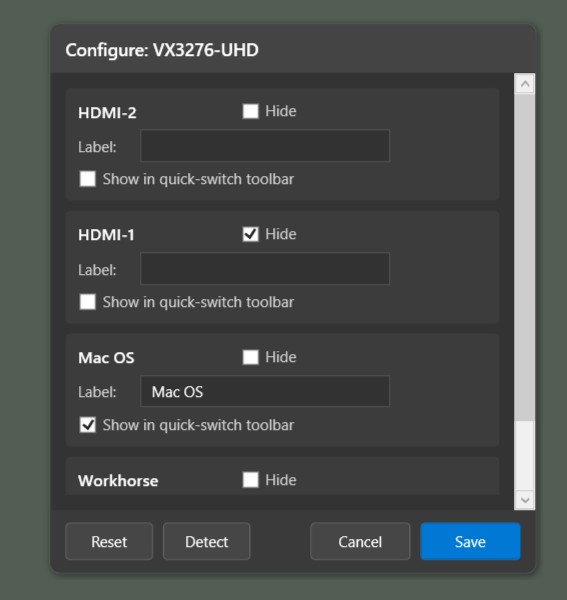
- Port Configuration - Customize port labels, hide unused ports, and create quick-switch buttons
- Quick-Switch Toolbar - One-click switching between frequently-used input sources
- Port Detection - Automatically discover available input ports on your monitor
- Power Management - On, Sleep, and Off controls
- Multi-Language - Auto-detects system language (English, Spanish, French, German, Chinese, Japanese, Portuguese, Italian, Hindi)
- Auto-Update Check - Notifies you when new versions are available
- System Resume Protection - Prevents DDC/CI commands during monitor wake-up to avoid scaler lockout
Requirements
- Windows 10/11
- .NET 9.0 Runtime
- DDC/CI compatible monitor(s)
Note: Most external monitors support DDC/CI, but some laptop internal displays and certain monitors may not support this protocol. If you encounter error codes like
0xc0262582or0xc0262583, see the Troubleshooting section.
Installation
From Release
- Download the latest release from the releases page
- Extract the archive to a folder of your choice
- Run
MonitorControl.exe - The app will appear in your system tray
Build from Source
git clone https://git.marketally.com/misc/ControlMyMonitorManagement.git
cd ControlMyMonitorManagement
dotnet build
dotnet run --project MonitorControl
Usage
Basic Operation
- Launch the application - it minimizes to the system tray
- Click the tray icon to open the control panel
- Adjust brightness/contrast with sliders
- Select input source from dropdown (if multiple available)
- Toggle power state with the power button
- Click outside the popup to close
Port Configuration
Click the Config button next to any monitor name to customize input ports:
- Custom Labels - Rename ports (e.g., "HDMI-1" → "PC", "DisplayPort-1" → "Laptop")
- Hide Ports - Remove unused ports from the dropdown
- Quick-Switch - Add frequently-used ports to the toolbar for one-click switching
- Port Detection - Click Detect to automatically discover available input ports
Port Detection Warning: This feature temporarily switches your monitor's input source to probe for available ports. Your screen may go dark briefly during each probe. This is safe for most monitors but should not be run repeatedly in a short time. You can cancel detection at any time.
Quick-Switch Toolbar
After configuring ports with "Show in quick-switch toolbar" enabled, buttons will appear in the main window for instant switching between configured inputs across all monitors.
Configuration
Configuration Files
Monitor settings are stored in JSON format:
Windows: %APPDATA%\MonitorControl\config.json
Configuration Structure
{
  "Monitors": [
    {
      "SerialNumber": "ABC123456",
      "MonitorName": "Dell U2720Q",
      "Ports": [
        {
          "VcpValue": 15,
          "DefaultName": "DisplayPort-1",
          "CustomLabel": "Laptop",
          "IsHidden": false,
          "ShowInQuickSwitch": true
        },
        {
          "VcpValue": 17,
          "DefaultName": "HDMI-1",
          "CustomLabel": "Desktop PC",
          "IsHidden": false,
          "ShowInQuickSwitch": true
        }
      ]
    }
  ]
}
VCP Codes Reference
The application uses DDC/CI VCP (Virtual Control Panel) codes to communicate with monitors:
| Code | Function | Values |
|---|---|---|
10 |
Brightness | 0-100 |
12 |
Contrast | 0-100 |
60 |
Input Source | See table below |
D6 |
Power Mode | 1=On, 4=Sleep, 5=Off |
Input Source Values
| VCP Value | Input Type |
|---|---|
| 1 | VGA-1 |
| 2 | VGA-2 |
| 3 | DVI-1 |
| 4 | DVI-2 |
| 15 | DisplayPort-1 |
| 16 | DisplayPort-2 |
| 17 | HDMI-1 |
| 18 | HDMI-2 |
Command-Line Options
The application can be controlled via command-line using ControlMyMonitor.exe (included in the installation):
Set Brightness
ControlMyMonitor.exe /SetValue Primary 10 70
Set Contrast
ControlMyMonitor.exe /SetValue "ABC123456" 12 65
Switch Input Source
# Switch to HDMI-1
ControlMyMonitor.exe /SetValue "\\.\DISPLAY1\Monitor0" 60 17

# Switch to DisplayPort-1
ControlMyMonitor.exe /SetValue Primary 60 15
Power Control
# Turn on
ControlMyMonitor.exe /TurnOn Primary

# Turn off (some monitors use 4 instead of 5)
ControlMyMonitor.exe /SetValue Primary D6 5

# Sleep
ControlMyMonitor.exe /SetValue Primary D6 4
Get Current Value
# Get brightness (returns value as exit code)
ControlMyMonitor.exe /GetValue Primary 10
echo %errorlevel%
Switch Between Values
# Toggle between 30%, 50%, and 90% brightness
ControlMyMonitor.exe /SwitchValue Primary 10 30 50 90

# Toggle monitor on/off
ControlMyMonitor.exe /SwitchValue Primary D6 1 5
Export/Import Settings
# Save current monitor settings
ControlMyMonitor.exe /SaveConfig "c:\backup\monitor.cfg" Primary

# Load saved settings
ControlMyMonitor.exe /LoadConfig "c:\backup\monitor.cfg" Primary
Monitor Identifiers
You can use several identifiers in place of Primary:
Primary- Primary monitorSecondary- Secondary monitor"ABC123456"- Serial number"\\.\DISPLAY1\Monitor0"- Device path"22EA53"- Monitor name
To find your monitor's identifier, open the control panel and press Ctrl+M (if supported by the full WPF application).
Troubleshooting
Error 0xc0262582 / 0xc0262583
These errors indicate Windows cannot communicate with your monitor via DDC/CI. Try these solutions:
- Update Graphics Driver - Ensure you have the latest driver from your GPU manufacturer
- Try Different Cable/Port - Switch between VGA, DVI, HDMI, or DisplayPort
- Remove KVM Switch - Connect monitor directly to the computer
- Enable DDC/CI in Monitor OSD - Some monitors have a setting to enable/disable DDC/CI
- Check Windows Display Settings - Ensure the monitor is properly detected
Monitor Not Detected
- Verify your monitor supports DDC/CI (check manufacturer specifications)
- Laptop internal displays often do not support DDC/CI
- Some USB-C/Thunderbolt adapters may not support DDC/CI passthrough
Commands Not Working After Sleep/Resume
The application automatically detects system resume and enforces an 8-second grace period before sending DDC/CI commands. This prevents scaler lockout on monitors that need time to fully wake up.
Slow Response or Timeouts
- DDC/CI communication can be slow (50-100ms per command)
- Multiple monitors increase total response time
- Some monitors have slower DDC/CI implementations
- If timeouts occur frequently, the application will automatically back off for 3 seconds
Debug Logging
If the control panel takes more than 3 seconds to load, a Show Log button will appear. Click it to view detailed debug information including:
- Monitor detection results
- DDC/CI command timing
- Error messages and stack traces
Log files are saved to: %TEMP%\CMM\debug.log
Credits
- Original Project: rictirse - ControlMyMonitorManagement base
- DDC/CI Engine: Nir Sofer - ControlMyMonitor (freeware)
- Enhancements: David H Friedel Jr - System tray UI, input switching, port configuration, quick-switch toolbar, localization, update checker, DDC/CI reliability improvements
License
MIT License - See LICENSE for details.
Note: ControlMyMonitor.exe is freeware by Nir Sofer (free distribution, no modification). The original ControlMyMonitorManagement code by DangWang has no explicit license. New contributions (system tray application, port configuration, quick-switch, DDC/CI improvements) are MIT licensed.
Monitor Control - User Guide
A Windows application for controlling DDC/CI-enabled monitors. Adjust brightness, contrast, input sources, and power settings through a simple system tray interface or WPF management window.
Table of Contents
- Features
- System Requirements
- Installation
- Getting Started
- Common Workflows
- Configuration
- Troubleshooting
- Best Practices
- Multi-Language Support
- Technical Notes
Features
- Brightness & Contrast Control: Adjust monitor brightness and contrast via sliders (VCP codes 10 and 12)
- Input Source Switching: Switch between HDMI, DisplayPort, DVI, VGA, and other inputs (VCP code 60)
- Power Management: Turn monitors on/off or put them to sleep (VCP code D6)
- Quick-Switch Toolbar: Create custom buttons for frequently-used input sources
- Port Configuration: Rename ports, hide unused inputs, and detect undiscovered ports
- System Tray Integration: Lightweight tray icon with popup control panel
- Multi-Monitor Support: Manage all DDC/CI-enabled monitors from one interface
- 9-Language Localization: English, Spanish, French, German, Chinese, Japanese, Portuguese, Italian, Hindi
- Automatic Updates: Checks for new releases from git.marketally.com
System Requirements
- Operating System: Windows Vista or later (tested on Windows 11)
- .NET Runtime: .NET 9.0 (included in installer)
- Hardware: DDC/CI-enabled monitor(s) connected via digital cable (HDMI, DisplayPort, DVI)
- Cable Type: VGA cables often do not support DDC/CI; use digital cables for best results
- Graphics Driver: Up-to-date driver recommended for reliable DDC/CI communication
Note: Some monitors do not support all VCP features. Power control and input switching support varies by manufacturer.
Installation
Option 1: Installer (Recommended)
- Download the latest
.exeinstaller from git.marketally.com - Run the installer and follow the prompts
- The application will launch automatically and add a tray icon
- Monitor Control will start with Windows by default
Option 2: Build from Source
-
Clone the repository:
git clone https://git.marketally.com/misc/ControlMyMonitorManagement.git cd ControlMyMonitorManagement -
Open
ControlMyMonitorManagement.slnin Visual Studio 2022 or later -
Restore NuGet packages:
dotnet restore -
Build the
MonitorControlproject:dotnet build MonitorControl/MonitorControl.csproj -c Release -
Run the executable:
MonitorControl/bin/Release/net9.0-windows/MonitorControl.exe
Required Files: The application depends on ControlMyMonitor.exe (by NirSoft) which must be in the same directory as the main executable. This file is included in the repository under Library/Resource/.
Getting Started
First Launch
- After installation, look for the monitor icon in your system tray (near the clock)
- Click the tray icon to open the control panel
- The application will scan for DDC/CI monitors (takes 2-5 seconds)
- Your monitors will appear with available controls
Understanding the Interface
The control panel displays one section per detected monitor:
- Monitor Name: Shown at the top of each section (e.g., "22EA53")
- Brightness Slider: 0-100% range
- Contrast Slider: 0-100% range
- Input Dropdown: Lists available input sources (HDMI, DisplayPort, etc.)
- Power Button: Shows current state (PowerOn, Sleep, PowerOff)
- Config Button: Opens port configuration window
If No Monitors Appear
If you see "No DDC/CI monitors detected":
- Verify your monitor supports DDC/CI (check monitor OSD settings for "DDC/CI Enable")
- Use a digital cable (HDMI, DisplayPort, DVI) — VGA often lacks DDC/CI support
- Update your graphics card driver
- Try unplugging and reconnecting the monitor
- If using a KVM switch, try connecting directly to the computer
- Click "Show Log" (appears after 3 seconds) to view debug information
Common Workflows
Adjusting Monitor Settings
Brightness:
- Click the tray icon to open the control panel
- Find the "Brightness" slider for your monitor
- Drag the slider to adjust (0-100%)
- Release the mouse button to apply the change
- The monitor will update within 1-2 seconds
Contrast:
- Follow the same steps as brightness
- Use the "Contrast" slider instead
Tips:
- Adjustments are applied when you release the mouse button, not while dragging
- If the monitor doesn't respond, wait 3-5 seconds and try again
- After waking from sleep, wait 8 seconds before adjusting settings (monitors need time to initialize)
Switching Input Sources
Manual Switching:
- Open the control panel
- Find the "Input" dropdown for your monitor
- Click the dropdown to see available sources:
- DisplayPort-1, DisplayPort-2
- HDMI-1, HDMI-2
- DVI-1, DVI-2
- VGA-1, VGA-2
- And others depending on your monitor
- Select the desired input
- The monitor will switch within 2-3 seconds
Example: Switch from HDMI to DisplayPort
- Current input shows "HDMI-1"
- Click the dropdown
- Select "DisplayPort-1"
- Monitor switches to DisplayPort input
If an Input Doesn't Appear:
Some monitors don't report all available inputs via DDC/CI. See Detecting Additional Ports below.
Managing Power States
Turn Off Monitor:
- Click the Power button (shows "PowerOn")
- Monitor enters sleep/standby mode
- Button updates to "Sleep" or "PowerOff"
Turn On Monitor:
- Click the Power button (shows "Sleep" or "PowerOff")
- Monitor wakes up
- Button updates to "PowerOn"
Notes:
- Some monitors don't support power control via DDC/CI (button will show "Power Unsupported")
- Power state detection varies by monitor firmware
- Turning off via DDC/CI is not the same as pressing the physical power button
Quick-Switch Toolbar
The quick-switch toolbar provides one-click buttons for frequently-used input sources.
Setup:
- Click the Config button next to a monitor name
- For each input port you want in the toolbar:
- Check "Show in quick-switch toolbar"
- Optionally set a custom label (e.g., "Gaming PC", "Laptop")
- Click Save
- The toolbar appears at the top of the control panel
Usage:
- Open the control panel
- Click any quick-switch button to instantly change input
- The corresponding dropdown updates automatically
Example Configuration:
Monitor: Dell U2720Q
- Port: HDMI-1 → Label: "Work Laptop" → Quick-switch: ✓
- Port: DisplayPort-1 → Label: "Gaming PC" → Quick-switch: ✓
- Port: HDMI-2 → Hidden (unused)
Result: Two buttons appear: "Work Laptop" and "Gaming PC"
Configuration
Customizing Port Labels
By default, ports use generic names like "HDMI-1" or "DisplayPort-1". You can rename them:
- Click Config next to the monitor name
- Find the port you want to rename
- Enter a custom label (e.g., "Xbox", "Work PC", "MacBook")
- Click Save
- The new label appears in the Input dropdown and quick-switch toolbar
Example:
| Port | Default Name | Custom Label |
|---|---|---|
| VCP Value 17 | HDMI-1 | Gaming PC |
| VCP Value 15 | DisplayPort-1 | Work Laptop |
| VCP Value 18 | HDMI-2 | Streaming PC |
Hiding Unused Ports
If your monitor reports inputs you don't use, you can hide them:
- Click Config
- Check the "Hide" checkbox next to unused ports
- Click Save
- Hidden ports won't appear in the Input dropdown
Important: The currently active input is never hidden, even if marked as hidden. This prevents confusion about which input is selected.
Detecting Additional Ports
Some monitors don't report all available inputs via DDC/CI. The port detection feature probes for undiscovered inputs.
How It Works:
- Click Config
- Click Detect
- Read the warning dialog carefully
- Click Yes to proceed
- The application will:
- Save your current input
- Try switching to common ports (DisplayPort-1, DisplayPort-2, HDMI-1, HDMI-2)
- Wait 3 seconds per port to check if the switch succeeded
- Restore your original input
- Any newly discovered ports are added to the configuration
Example Output:
Detected 2 new port(s):
  • DisplayPort-1
  • HDMI-2
Warnings:
- Your screen may go black briefly during each probe
- The process takes 10-20 seconds for 4 ports
- Don't run detection repeatedly in a short time (can stress monitor scaler)
- Click Cancel anytime to stop detection
- Detection is safe for most monitors but use sparingly
When to Use Detection:
- Your monitor has a port that doesn't appear in the dropdown
- You know the monitor supports an input but it's not listed
- After connecting a new cable type
When NOT to Use Detection:
- All your ports already appear correctly
- You just want to rename existing ports (use custom labels instead)
- Your monitor is behaving strangely (wait for it to stabilize first)
Resetting Configuration
To restore default settings:
- Click Config
- Click Reset
- All custom labels are cleared
- All ports are unhidden
- Quick-switch toolbar is cleared
- Discovered ports are removed
Troubleshooting
Monitor Not Detected
Symptoms: "No DDC/CI monitors detected" message
Solutions:
-
Enable DDC/CI in Monitor OSD:
- Press the monitor's menu button
- Look for "DDC/CI" or "External Control" setting
- Set to "On" or "Enable"
-
Check Cable Type:
- VGA cables often lack DDC/CI support
- Use HDMI, DisplayPort, or DVI instead
- Try a different cable if available
-
Update Graphics Driver:
- Visit your GPU manufacturer's website (NVIDIA, AMD, Intel)
- Download the latest driver
- Restart after installation
-
Direct Connection:
- If using a KVM switch, try connecting directly to the PC
- Some KVM switches block DDC/CI signals
-
Restart Monitor:
- Unplug monitor power cable
- Wait 10 seconds
- Plug back in and power on
Controls Not Responding
Symptoms: Sliders move but monitor doesn't change
Solutions:
-
Wait After Sleep/Resume:
- After waking PC from sleep, wait 8 seconds before adjusting
- Monitor scalers need time to initialize DDC/CI
-
Check Error Codes:
- Click "Show Log" button (appears after 3 seconds of loading)
- Look for error codes like
0xC0262582or0xC0262583 - These indicate DDC/CI communication failure
-
Reduce Command Frequency:
- Don't drag sliders rapidly
- Wait 1-2 seconds between adjustments
- The application enforces 50ms minimum spacing between commands
-
Monitor Timeout Cooldown:
- If a command times out, the monitor is backed off for 3 seconds
- Wait and try again
- Persistent timeouts indicate hardware/firmware issue
-
Firmware Update:
- Check monitor manufacturer's website for firmware updates
- Some bugs are fixed in newer firmware
Input Switching Fails
Symptoms: Input dropdown changes but monitor doesn't switch
Possible Causes:
-
No Signal on Target Input:
- The monitor may refuse to switch if no device is connected to that input
- Connect a device to the target input first
-
Monitor Doesn't Support DDC/CI Input Switching:
- Some monitors allow brightness/contrast control but not input switching
- Use the monitor's physical buttons instead
-
Scaler Busy:
- If you just switched inputs manually, wait 5 seconds before using DDC/CI
- Monitor scaler may be locked during manual input changes
Power Control Doesn't Work
Symptoms: Power button shows "Power Unsupported" or doesn't respond
Explanation:
- Power control (VCP code D6) is optional in the DDC/CI spec
- Many monitors don't implement it or implement it incorrectly
- This is a monitor firmware limitation, not a software bug
Workaround:
- Use the monitor's physical power button
- Use Windows display settings to turn off displays
- Some monitors support power control only in specific modes (check OSD settings)
Application Crashes or Hangs
Symptoms: Window freezes, doesn't respond, or closes unexpectedly
Solutions:
-
Check Debug Log:
- Click "Show Log" button
- Click "Open Log File" to view full log
- Look for exceptions or error messages
- Copy log when reporting issues
-
Restart Application:
- Right-click tray icon → Exit
- Launch again from Start Menu
-
Reinstall:
- Uninstall via Windows Settings → Apps
- Download latest version
- Reinstall
-
Report Issue:
- Copy debug log
- Note your monitor model and connection type
- Report at git.marketally.com/misc/ControlMyMonitorManagement/issues
Error Code Reference
| Error Code | Meaning | Solution |
|---|---|---|
| 0xC0262582 | DDC/CI device not found | Enable DDC/CI in monitor OSD |
| 0xC0262583 | DDC/CI communication timeout | Update graphics driver, try different cable |
| Exit Code -1 | Command timeout (5 seconds) | Wait for cooldown, check monitor health |
Best Practices
DDC/CI Command Spacing
- Don't spam commands: The application enforces 50ms minimum spacing, but monitors appreciate longer gaps
- Wait after sleep: Always wait 8 seconds after system resume before sending commands
- One adjustment at a time: Don't drag multiple sliders simultaneously
Post-Sleep Behavior
When your PC wakes from sleep:
- Monitor scalers need 5-8 seconds to fully initialize
- The application activates an 8-second grace period automatically
- Commands sent during this period are delayed until it expires
- This prevents scaler lockout and command failures
KVM Switch Users
If you use a KVM switch:
- DDC/CI may not work through the KVM (depends on model)
- Try connecting one monitor directly to test
- Some KVMs have "DDC/CI passthrough" settings — enable if available
Multiple Monitors
- The application manages all monitors independently
- Each monitor has its own command queue and rate limiting
- Switching inputs on multiple monitors simultaneously is safe
- Configuration is saved per monitor (by serial number)
Firmware Quirks
Different monitor brands have different DDC/CI implementations:
- Dell: Generally excellent DDC/CI support
- LG: Good support, some models have slow response times
- Samsung: Variable support, some models don't report current input correctly
- ASUS: Usually good, gaming monitors sometimes have limited VCP codes
- BenQ: Mixed support, check DDC/CI setting in OSD
If your monitor doesn't report its current input correctly, the application will still attempt to add it to the list when detected.
Multi-Language Support
The application automatically detects your Windows language and uses the best matching translation.
Supported Languages:
- English (en)
- Spanish (es)
- French (fr)
- German (de)
- Chinese (zh)
- Japanese (ja)
- Portuguese (pt)
- Italian (it)
- Hindi (hi)
Changing Language:
The application uses Windows system language. To change:
- Open Windows Settings → Time & Language → Language
- Add or set preferred language
- Restart Monitor Control
Fallback: If your language isn't supported, the application defaults to English.
Technical Notes
DDC/CI Protocol
Monitor Control uses the DDC/CI (Display Data Channel / Command Interface) protocol to communicate with monitors over the video cable. This is a standardized protocol (VESA DDC/CI 1.1) supported by most modern monitors.
VCP Codes Used:
| VCP Code | Feature | Read/Write |
|---|---|---|
| 10 | Brightness | Read/Write |
| 12 | Contrast | Read/Write |
| 60 | Input Source | Read/Write |
| D6 | Power Mode | Read/Write |
ControlMyMonitor.exe
This application wraps ControlMyMonitor by NirSoft (freeware). The ControlMyMonitor.exe binary is included in the Library/Resource/ folder and must be present for the application to function.
License: ControlMyMonitor is freeware by Nir Sofer. See Library/Resource/readme.txt for details.
Configuration Storage
Monitor configurations are stored in JSON format at:
%APPDATA%\MonitorControl\config.json
Structure:
{
  "Monitors": [
    {
      "SerialNumber": "ABC123",
      "MonitorName": "Dell U2720Q",
      "Ports": [
        {
          "VcpValue": 17,
          "DefaultName": "HDMI-1",
          "CustomLabel": "Gaming PC",
          "IsHidden": false,
          "ShowInQuickSwitch": true
        }
      ]
    }
  ]
}
You can manually edit this file if needed (close the application first).
Debug Logging
Debug logs are written to:
%TEMP%\CMM\debug.log
To view logs:
- Click "Show Log" button in the control panel (appears after 3 seconds of loading)
- Click "Open Log File" to view in Explorer
- Click "Copy to Clipboard" to paste into bug reports
Logs include:
- Monitor scan results
- VCP command requests and responses
- Error codes and timeout events
- System resume events
Update Mechanism
The application checks for updates from:
https://git.marketally.com/api/v1/repos/misc/ControlMyMonitorManagement/releases/latest
Update checks occur:
- On first launch
- Once per hour while the application is running
- When you click the tray icon (if more than 1 hour since last check)
If an update is available:
- A banner appears at the top of the control panel
- A balloon notification appears in the system tray
- Clicking either opens the download page in your browser
Updates are not automatic — you must download and run the installer manually.
Rate Limiting and Throttling
To protect monitor scalers from command overload:
- Per-Monitor Command Spacing: Minimum 50ms between commands to the same monitor
- Post-Resume Grace Period: 8-second delay after system wake
- Timeout Cooldown: 3-second backoff after a command timeout
- Global DDC Lock: Prevents parallel commands from overwhelming the DDC/CI bus
These limits are enforced automatically and cannot be disabled.
Tips
- Keyboard Shortcuts: None currently implemented (tray-only interface)
- Startup Behavior: Application starts minimized to tray by default
- Window Position: Control panel appears near the system tray (bottom-right)
- Auto-Hide: Control panel closes when it loses focus (click elsewhere)
- Config Persistence: All settings survive application restart
- Monitor Hotplug: Disconnect/reconnect monitors are detected on next tray icon click
Credits
- Original Project: ControlMyMonitorManagement by DangWang
- Enhancements: Brightness/contrast controls, input switching, multi-language support, quick-switch toolbar by David H. Friedel Jr (MarketAlly)
- DDC/CI Tool: ControlMyMonitor by Nir Sofer (NirSoft)
License
- New Contributions: MIT License (see LICENSE file)
- Original Code: No explicit license provided by DangWang
- ControlMyMonitor.exe: Freeware by NirSoft (no commercial use, no modification)
For issues, feature requests, or contributions, visit:
MIT License (for new contributions only)

Copyright (c) 2026 David H Friedel Jr

Permission is hereby granted, free of charge, to any person obtaining a copy
of this software and associated documentation files (the "Software"), to deal
in the Software without restriction, including without limitation the rights
to use, copy, modify, merge, publish, distribute, sublicense, and/or sell
copies of the Software, and to permit persons to whom the Software is
furnished to do so, subject to the following conditions:

The above copyright notice and this permission notice shall be included in all
copies or substantial portions of the Software.

THE SOFTWARE IS PROVIDED "AS IS", WITHOUT WARRANTY OF ANY KIND, EXPRESS OR
IMPLIED, INCLUDING BUT NOT LIMITED TO THE WARRANTIES OF MERCHANTABILITY,
FITNESS FOR A PARTICULAR PURPOSE AND NONINFRINGEMENT. IN NO EVENT SHALL THE
AUTHORS OR COPYRIGHT HOLDERS BE LIABLE FOR ANY CLAIM, DAMAGES OR OTHER
LIABILITY, WHETHER IN AN ACTION OF CONTRACT, TORT OR OTHERWISE, ARISING FROM,
OUT OF OR IN CONNECTION WITH THE SOFTWARE OR THE USE OR OTHER DEALINGS IN THE
SOFTWARE.

---

NOTICE: This project contains components with different licensing terms:

1. Original code by DangWang - No explicit license was provided with the
   original repository. Use at your own discretion.

2. ControlMyMonitor.exe by Nir Sofer (NirSoft) - Freeware license:
   - Free distribution allowed
   - No commercial use or sale
   - No modification
   - See: https://www.nirsoft.net

3. New contributions (brightness/contrast controls, input source switching,
   9-language localization) - MIT License as above.